Chart colors & themes
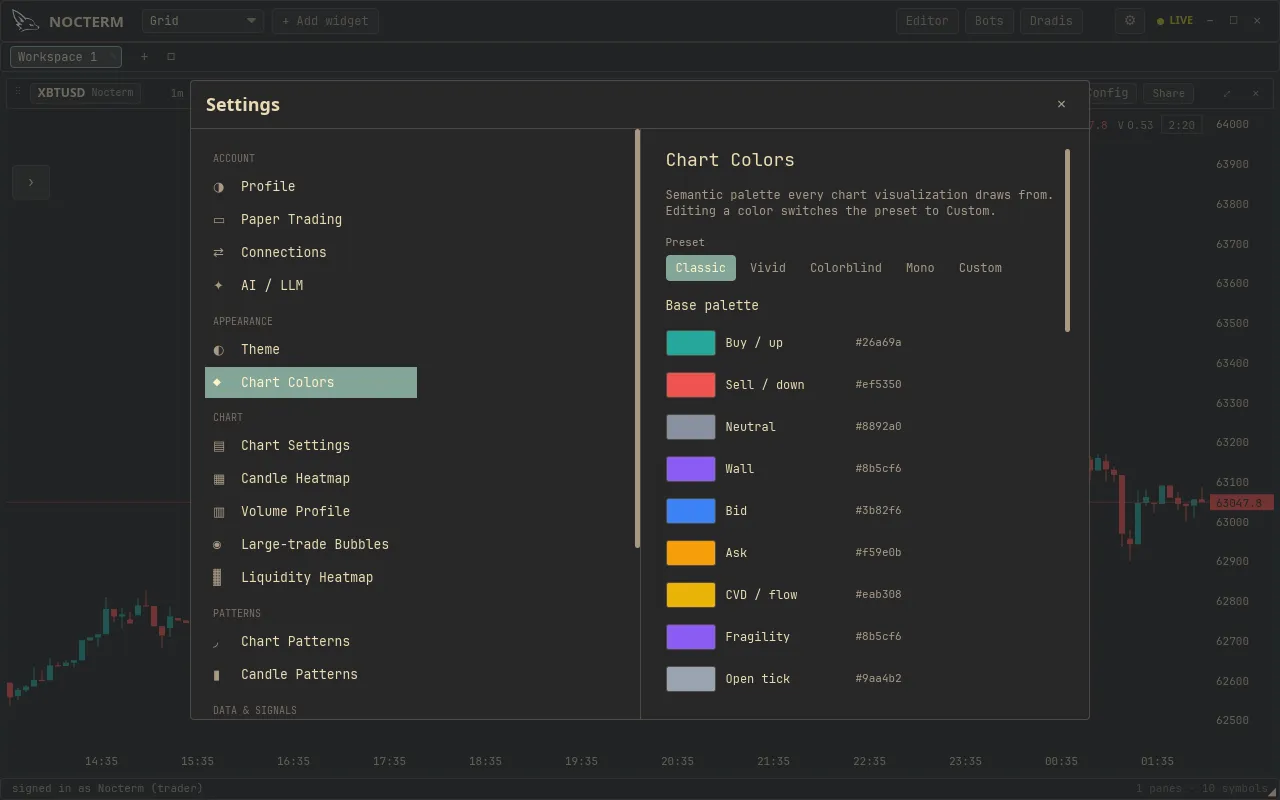
Nocterm draws every chart from a single shared palette. Pick a ready-made preset, or set custom colors per surface - candles, indicators, heatmap, bid/ask - with each surface carrying its own roles for buy, sell, and neutral. Everything is read at draw time, so changes show the moment you make them.
Overview
Section titled “Overview”The palette is organized by surface - the distinct things the chart paints - and within each surface by role. A surface like bid/ask has a buy role and a sell role; an indicator has its own line colors. Choosing a preset sets every surface at once for a coherent look. From there you can override individual surfaces and roles without disturbing the rest. Because the chart reads these values at draw time, a change repaints immediately rather than on reload.
How to use
Section titled “How to use”-
Open Settings ▸ Appearance.
-
Pick a palette preset for a coordinated theme across all surfaces.
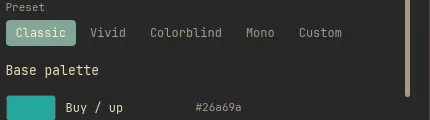
Choosing a palette preset in Appearance settings -
To fine-tune, expand a surface and set its role colors - for example the buy and sell colors of bid/ask, or an indicator’s lines.
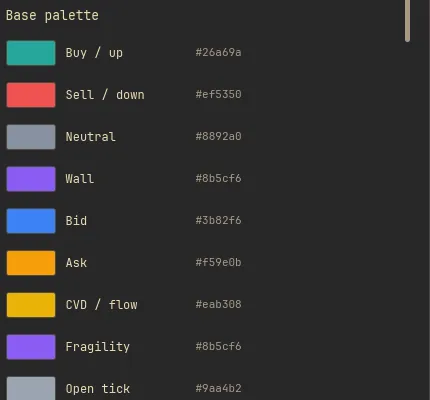
Overriding role colors for a single surface
Surfaces & roles
Section titled “Surfaces & roles”| Surface | Typical roles | What it colors |
|---|---|---|
| Candles | Buy / sell | Bullish and bearish candle bodies |
| Indicators | Neutral (per indicator) | Overlay and oscillator lines |
| Heatmap | Buy / sell / neutral | Liquidity and order-flow heat intensity |
| Bid / ask | Buy / sell | Resting bid and ask surfaces |
Related
Section titled “Related”- Candle styling - set bullish and bearish candle colors specifically.
- Liquidity heatmap - the heatmap surface in action.
- Adding & managing indicators - the indicators the palette colors.