Connecting an exchange
Live trading sends orders straight from Nocterm to your exchange - there’s no separate bridge app to install. You connect an exchange once under Settings ▸ Connections by entering its API keys; from then on, any panel pointed at that venue (with Local paper off) routes real orders to the market. This page covers connecting a venue and reading its connection status.
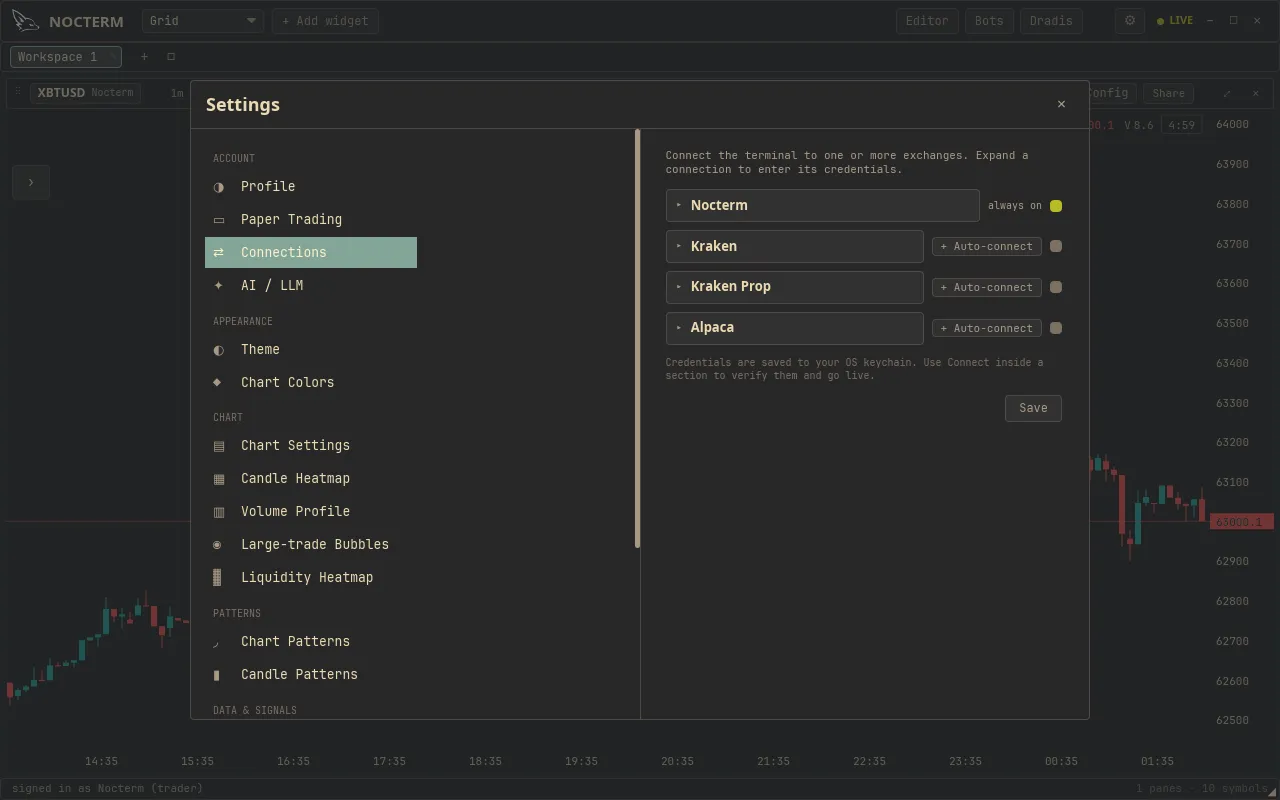
How connections work
Section titled “How connections work”Nocterm holds your exchange session directly. When a venue is connected, orders you place on a panel showing that venue go to the exchange; when it isn’t connected, there’s nothing to carry the order, so it won’t route. The Nocterm venue needs no keys - it’s data-only and always runs the in-app paper engine.
Connecting a venue
Section titled “Connecting a venue”- Open Settings ▸ Connections and expand the exchange you want (Kraken, Kraken Prop, or Alpaca). Live venues need the Trader or Desk tier.
- Enter the venue’s API key and secret (created in the exchange’s own dashboard).
- Press Connect. Nocterm validates the keys and opens the feed.
- Confirm the connection dot turns green, and leave Local paper off so the venue trades live.
Reading the connection status
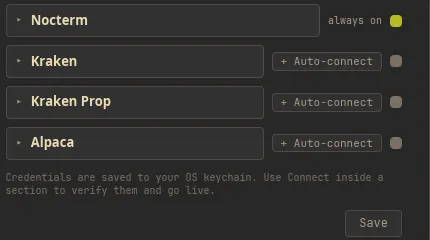
Section titled “Reading the connection status”Each venue in Connections shows a status dot:
| Dot | Meaning |
|---|---|
| Green | Connected - the feed is online and live orders will reach the exchange |
| Gray | Not connected - reconnect before placing a live order |
Live vs Local paper
Section titled “Live vs Local paper”Connecting an exchange doesn’t commit you to live trading. Each venue carries a Local paper toggle in Connections: off means real orders, on means the same venue’s orders fill in the in-app simulator against its live prices. That lets you rehearse on a real market’s data with no money at risk, then flip to live when you’re ready.
Related
Section titled “Related”- Live trading - placing real orders once a venue is connected.
- Paper trading - the in-app simulated account.