Layout modes
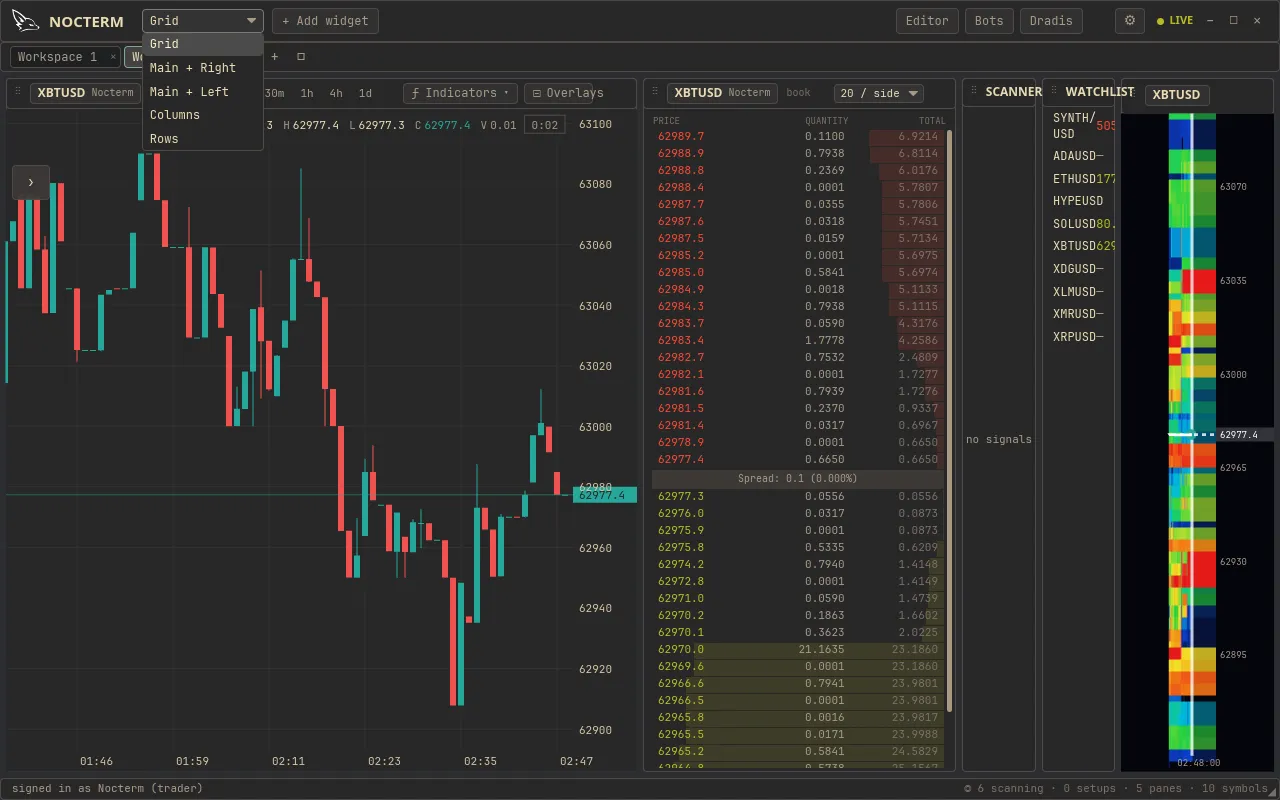
A layout mode decides how a workspace tiles its panels. Nocterm has five: a free-form Grid, a large main panel with a side stack (Main-Right or Main-Left), equal Columns, and equal Rows. Switching modes re-tiles the panels you already have - it does not add or remove them.
Overview
Section titled “Overview”Each mode is a different way of dividing the same space. Grid gives you full control to place and size panels by hand; the structured modes do the tiling for you so every panel gets a sensible slot. Because the panels themselves stay put, you can try a few modes quickly and keep whichever reads best.
How to use
Section titled “How to use”-
Open the workspace menu and pick a layout mode.
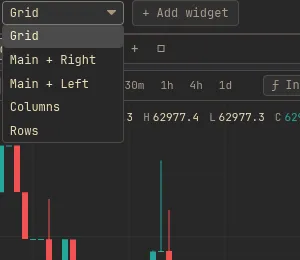
Choosing a layout mode from the workspace menu -
The current panels re-tile into the new mode. Nothing is added or removed.
-
In Grid, fine-tune by dragging panels and pulling their edges. The structured modes size panels for you.
The five modes
Section titled “The five modes”| Mode | How it tiles |
|---|---|
| Grid | Free-form - place and size panels by hand |
| Main-Right | A large main panel on the left with a side stack on the right |
| Main-Left | The mirror of Main-Right - side stack on the left, main panel on the right |
| Columns | Equal-width columns |
| Rows | Equal-height rows |
Related
Section titled “Related”- Workspaces - each workspace keeps its own layout mode.
- Adding & arranging panels - move and resize panels in Grid mode.
- Panel types reference - the widgets these modes arrange.